Direct answer
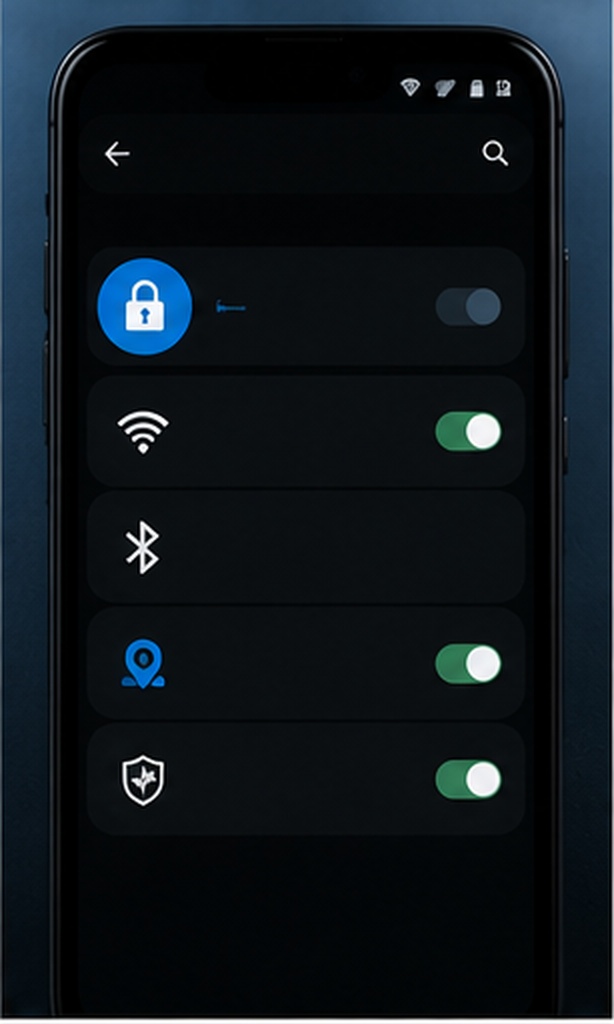
Android implementations vary. First check Settings › Security & privacy for Private Space or a manufacturer feature named App Lock, Secure Folder, or a similar term. If the phone has no suitable built-in control, a reputable app locker can gate access to Messenger. None of these methods creates a password for only one conversation.
Choose the native route first
Private SpaceUseful on supported Android versions for separating sensitive apps behind device authentication.
Manufacturer App LockSome vendors provide a per-app PIN or biometric gate. Names and menus differ.
Screen pinningKeeps one app in view when handing over the phone. It does not lock Messenger itself.
Verify instead of assuming
- Enable the selected control and add Messenger.
- Leave the app and lock the phone.
- Unlock the phone, open Messenger, and confirm that the second gate appears.
- Check recent-app previews and notification previews for exposed text.
- Confirm that the fallback PIN is known and stored safely.
Optional Android layer
App Lock & Gallery Vault
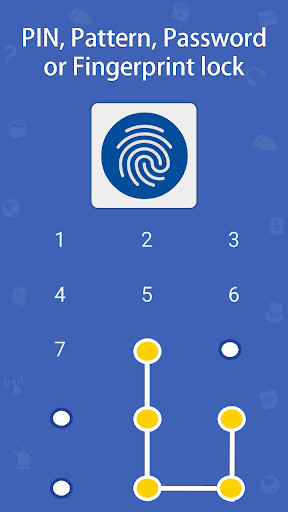
When a phone lacks a suitable built-in app lock, the NewSoftwares Android app offers an authentication gate for selected apps. It does not create a separate password for an individual Messenger conversation, and its protection depends on correct permissions and device behavior.
Review the Google Play listing