Start here
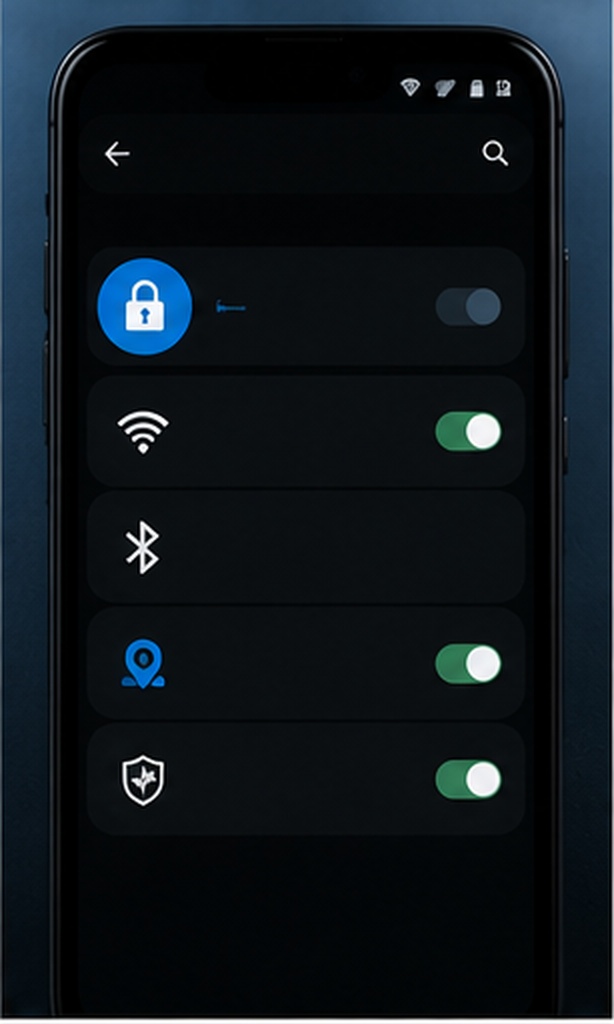
First identify which layer failed: iPhone’s app lock, an Android manufacturer feature, Private Space, or a third-party app locker. Do not clear Messenger data or delete encrypted-chat secure storage as a first step; those actions can affect local or backed-up chat history.
Symptom-to-fix path
No lock option on iPhoneCheck the iOS version, device management restrictions, and whether Messenger is a downloaded app eligible for the control.
Android lock disappearsReview battery optimization, background permission, accessibility access, and whether the manufacturer suspended the locker.
Notifications reveal textChange notification-preview settings; the app gate and notification layer are separate.
Biometric failsUse the authorized fallback PIN or passcode. Re-enroll biometrics only through device settings.
Safe recovery order
- Confirm the device passcode works.
- Update the operating system and Messenger from the official store.
- Disable and re-enable only the app-lock control.
- Restart the phone and repeat the locked-screen test.
- Before resetting encrypted-chat storage, read Messenger’s warning about permanent history loss.
Avoid “bypass” tools
Do not install credential-bypass utilities, untrusted profiles, or modified Messenger packages. They can expose account tokens and messages. Use official account recovery and device-owner controls only.